
How to Login AQ99 in Game
If you have been wondering how to login AQ99 game without wasting time, this guide takes you through the whole process in plain language, from getting your details ready to fixing the errors that appear most often.
What to Prepare Before You Sign In
A little preparation saves a lot of frustration. Before you open the app or the website, gather these things:
- Your registered username, phone number, or email address, whichever you used when creating the account
- Your password, typed exactly as you set it, including capital letters and symbols
- A phone that can receive a verification code, in case one is requested
- A steady internet connection, either Wi-Fi or reliable mobile data
- The latest version of the app, if you plan to sign in from your phone
Check your device’s date and time as well. It sounds odd, but a wrong clock can interfere with secure connections and stop pages from loading properly.
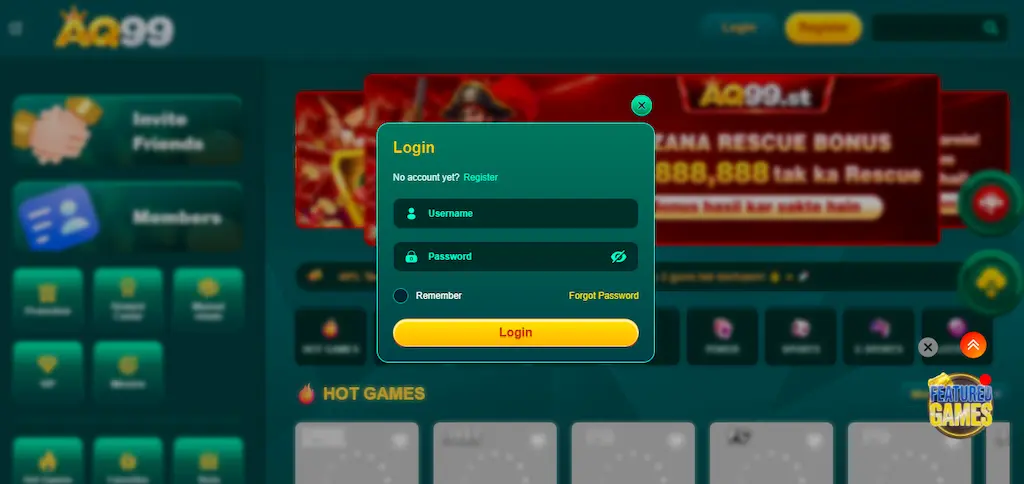
Step-by-Step Login Process
Signing In Through the Mobile App
- Tap the AQ99 icon on your home screen to open the app.
- Wait for the opening page to load completely. If the app asks you to update, do that first.
- Tap the Login button, usually near the top or centre of the screen.
- Enter your username or registered phone number in the first field.
- Type your password in the second field. If there is a small eye icon, tap it to confirm you typed the password correctly.
- Enter the verification code if the app asks for one.
- Tap Login once more and give it a few seconds to open your account.
Signing In Through a Browser
Prefer not to install anything? A browser works just as well.
- Open an up-to-date browser such as Chrome, Safari, or Edge.
- Type the official address carefully into the address bar rather than tapping an unknown link.
- Select the Login option on the home page.
- Fill in your details and confirm.
A quick habit worth building: read the web address letter by letter before you type anything private. Look-alike addresses are common, and one wrong character can lead you somewhere you did not intend to go.
Login Methods at a Glance
| Method | Best For | What You Need | Speed |
|---|---|---|---|
| Mobile app | Everyday use | Installed app and login details | Fastest |
| Mobile browser | Quick access without installing | Official address and login details | Fast |
| Desktop browser | Bigger screen, longer sessions | Official address and login details | Fast |
Whichever route you choose, the details you enter are the same. The difference is only in convenience. Most people settle on the app because it remembers preferences and loads quicker after the first sign-in.
Common Login Problems and Simple Fixes
Even careful users hit a snag now and then. Here is what usually causes trouble and what to try first.
| Problem | Likely Cause | What to Try |
|---|---|---|
| “Wrong password” message | Typing slip or caps lock | Retype slowly, check caps lock, use the show-password icon |
| Page will not load | Weak connection | Switch between Wi-Fi and mobile data, restart your router |
| Login button does nothing | Old app version or cluttered cache | Update the app, then clear its cache |
| Verification code never arrives | Network delay or wrong number | Wait a minute, request once more, check your signal |
| App closes right after opening | Low storage or outdated version | Free up space, reinstall the latest version |
| Suddenly logged out | Expired session after an update | Sign in again with your details |
A Few Extra Tips
- Do not tap the Login button over and over. Repeated attempts can trigger a temporary pause on the account.
- Restart your phone if nothing else works. It clears small glitches more often than you would expect.
- Try the browser route if the app refuses to cooperate, and the other way around.
What to Do If You Forget Your Password
Forgetting a password happens to everyone, and the fix is usually quick.
- On the login screen, look for the option that says forgot password or reset password.
- Enter your registered phone number or email address.
- Wait for the verification code or reset message to arrive.
- Enter the code and choose a new password.
- Go back to the login page and sign in with the new password.
Pick something you have never used before, with a mix of letters, numbers, and symbols. Avoid birthdays, phone numbers, or simple sequences like 123456, because those are the first things anyone would guess. If the reset message does not show up, check your spam folder or confirm that the number you entered is the one linked to your account.
Keeping Your Login Safe
Signing in is only half the story. Protecting the account afterwards matters just as much.
- Never share your password or verification code with anyone, even if someone claims to be from support.
- Avoid saving your details on shared or borrowed phones.
- Log out whenever you use a public or family device.
- Install the app only from sources you trust, and be wary of unexpected pop-ups asking you to download something.
- Keep your phone’s software and the app updated so security gaps stay closed.
- Use a different password here than on your other accounts.
If anything looks unusual, such as a sign-in alert you did not expect, change your password straight away and contact the support team through the official channel.
Frequently Asked Questions
Can I log in on more than one device?
Many platforms allow it, but using a single trusted device is safer. If you do sign in elsewhere, remember to log out afterwards.
Why does the app keep asking me to update?
Older versions can develop bugs or lose compatibility with newer phones. Updating usually clears login errors and makes loading smoother.
Will reinstalling the app delete my account?
No, reinstalling normally removes only the app from your phone. Your account stays, but you will need to sign in again, so keep your details handy.
What if the verification code takes too long?
Give it a minute or two, then request it again just once. Check that your signal is strong and that the phone number on file is correct.
Is it okay to save my password in my browser?
It is convenient, but only do it on a personal device that nobody else uses. On shared devices, type your details each time.
Final Thoughts
Logging in does not have to be a guessing game. Get your details ready, use the official app or address, enter everything carefully, and keep your phone updated. If something goes wrong, work through the quick fixes above before trying anything drastic, since most problems come down to a typo, a weak connection, or an old version of the app. Once you have the routine down, signing in becomes second nature, and a few safe habits will keep your account protected for the long run.